AVIF to PNG: A Practical Guide for Web-Ready Images
Converting from AVIF to PNG often comes up when you need your images to work absolutely everywhere. While AVIF is fantastic for its compression, PNG is the old reliable—it’s supported on virtually every browser and device out there, something the newer AVIF format can't yet claim. The goal is to take a super-compressed AVIF file and save it as a lossless PNG, striking a crucial balance between modern performance and universal access.
Converting from AVIF to PNG often comes up when you need your images to work absolutely everywhere. While AVIF is fantastic for its compression, PNG is the old reliable—it’s supported on virtually every browser and device out there, something the newer AVIF format can't yet claim. The goal is to take a super-compressed AVIF file and save it as a lossless PNG, striking a crucial balance between modern performance and universal access.
Why and When to Convert AVIF to PNG
Let's be clear: AVIF is a huge win for web performance. It delivers file sizes that are dramatically smaller than older formats like JPEG or even WebP. That means one thing: faster-loading pages. And in the world of Core Web Vitals and user experience, speed is king. Fast websites keep users happy and tend to rank better in search results. A key part of this is improving page speed with optimised images, which directly boosts your performance metrics.
The catch, of course, is compatibility. While the latest versions of major browsers have embraced AVIF, there's still a significant chunk of users on older devices or less common browsers that simply can't display them. For those users, an AVIF image is just a broken icon. It looks unprofessional and can easily frustrate someone enough to leave your site. This is exactly where converting AVIF to PNG becomes a vital part of your web strategy.
To make this clearer, let's break down the key differences.
AVIF vs PNG Quick Comparison
This table gives you a quick snapshot of where each format shines and why you might need to convert between them.
| Feature | AVIF (AV1 Image File Format) | PNG (Portable Network Graphics) |
|---|---|---|
| Compression | Excellent lossy and lossless compression, resulting in very small file sizes. | Lossless compression only, leading to larger file sizes but perfect quality. |
| Compatibility | Supported by most modern browsers, but not by older or less common ones. | Universally supported across all browsers, devices, and email clients. |
| Transparency | Yes, supports alpha channel for full transparency. | Yes, a classic strength of the format is its excellent alpha channel support. |
| Animation | Yes, can create animated sequences much more efficiently than GIF. | No, PNG is a static image format (though APNG exists, its support varies). |
| Best For | Performance-critical applications like hero images, where speed is paramount. | Logos, icons, and critical images that must display everywhere without fail. |
Ultimately, having a PNG on hand is about creating a reliable fallback.
The Case for a Fallback Strategy
Think of PNG as your safety net. It’s a lossless format, which means it keeps every single pixel from the original image perfectly intact—including transparency (the alpha channel). When a browser doesn't recognise AVIF, you can serve the PNG version instead. This way, your site’s visual integrity never breaks.
This dual-format approach lets you give the best of both worlds: the speed of AVIF for most visitors and a reliable backup for everyone else. It's a practical solution for common scenarios:
- E-commerce Product Images: A potential customer on an old tablet sees a blank space instead of your product? That’s a lost sale.
- Company Logos and Icons: Your brand identity has to render flawlessly everywhere. PNG is the safe bet for these critical assets.
- Email Campaigns: Email clients are notoriously bad at supporting modern image formats. PNG is an absolute must for graphics in emails.
A smart conversion strategy isn't just about avoiding broken images. It’s about delivering a consistent, high-quality experience to every single user, no matter what tech they're using. This builds trust and ensures your message always gets across.
This need for flexibility is clear in diverse digital markets. Take Poland in 2023, where 88.4% of the population was online every day. With a huge variety of screen resolutions in use—from 1920x1080 desktops to countless mobile screens—developers had to optimise for every possibility, which included converting AVIF to PNG for older browsers. You can learn more about the variety of screen resolutions in the Polish market.
Mastering Conversions with Command-Line Tools
When you need to get an avif to png conversion done quickly and without fuss, nothing beats the command line. For developers, CLI tools are the swiss army knife for image processing. They give you raw power and direct control right from your terminal, which is perfect for one-off tasks, checking assets, or even slotting into a simple build script.
These tools are battle-tested workhorses and are often the engines running behind the scenes in much larger, more complex image processing systems. For most of us in the trenches, ImageMagick is the first tool we reach for. It's an incredibly robust suite that can handle just about any image task you throw at it, making format conversion a breeze.
This is the kind of environment where you can run powerful, single-line commands to get images processed efficiently, no graphical interface needed.
Getting It Done with ImageMagick
Jumping in with ImageMagick is refreshingly straightforward. Once it's installed on your system, converting a single file is as simple as typing one line. This is ideal when you just need to get one asset converted for an old system that doesn't support AVIF or for an email campaign.
The basic command is as clean as it gets:
convert input-image.avif output-image.png
That's it. This command takes your AVIF, decodes it, and spits out a brand-new PNG file, handling the format change automatically. But—and this is a big but—the default settings might not capture all the nuances of your original image. This is where you need to be a bit more specific.
A common pitfall is just running a basic conversion and calling it a day. I’ve seen it happen many times: you forget to handle transparency or check the colour profile, and suddenly that crisp logo now has a jarring white background or looks completely washed out.
If your AVIF file uses transparency, for example, you have to make sure the PNG output preserves it. ImageMagick is usually pretty clever about this, but explicitly telling it what to do is the only way to guarantee you won’t get any nasty surprises.
Gaining Finer Control with Flags
To really get the most out of any command-line tool, you have to get comfortable with its optional flags. These parameters are what give you granular control over the output, helping you sidestep common problems like massive file sizes or stripped metadata.
Here are a few of my go-to tools and the commands I use:
- ImageMagick (
convert): The all-in-one powerhouse. I use this for general conversions, especially if I also need to do a quick resize or apply an effect at the same time. - ffmpeg: You probably know it for video, but ffmpeg is surprisingly handy for still images. A lot of developers already have it installed, which is a nice bonus. The command is just as simple:
ffmpeg -i input.avif output.png. - libavif (
avifdec): This is a dedicated AVIF decoder. It's blazing fast and my choice for pure, no-nonsense conversion when I don't need any extra processing. The command isavifdec input.avif output.png.
When you're converting, always keep an eye on the quality and compression settings for the output PNG. Even though PNG is lossless, some tools let you apply filters that can shrink the final file size without losing quality. It’s worth experimenting here; finding that sweet spot can give you faster-loading images, which is a direct win for your site's Web Core Vitals and overall page speed. And faster images mean a better user experience and a nice little boost for your SEO.
Automating Bulk Conversions with Scripting
When you're managing a website with hundreds, if not thousands, of images, converting files one by one just isn't an option. This is where automation becomes your best friend. Scripting your AVIF to PNG conversion lets you process entire directories in one go, saving you a massive amount of time and keeping your assets consistent.
By weaving a conversion script into your development pipeline, you build a system that's both reliable and repeatable. It's particularly powerful in a CI/CD (Continuous Integration/Continuous Deployment) setup where images are constantly being added or updated. A smart script can automatically generate PNG fallbacks every time a new AVIF file lands in your project.
Building a Python Conversion Script
Python is a fantastic choice for this job, largely thanks to its powerful yet simple libraries. My go-to is usually Pillow, a fork of the original Python Imaging Library (PIL). It’s lightweight, dead simple to install, and makes the process of opening an AVIF and saving it as a PNG feel almost trivial.
The core idea is to write a script that walks through a source folder, finds all the .avif files, and then spits out a .png version into a destination folder. You can easily build the logic to mirror your original directory structure, which is a lifesaver on big projects. For example, a script could scan source/images/products/ and automatically pop the new PNGs into public/images/products/.
Here's a quick rundown of what a Python script with Pillow would look like:
- Import the tools: You'll need the
oslibrary for file paths andImagefromPILto handle the actual images. - Set your paths: Define where your AVIF files live and where the PNGs should go.
- Iterate through the directory: Using
os.walk()is perfect for this, as it handles all the subdirectories for you. - Find your targets: A simple check to see if a filename ends with
.avif. - Convert and save: Open the AVIF file and use the
.save()method to write it out as a PNG. It’s smart enough to handle things like transparency automatically.
Using Node.js and Sharp for Raw Speed
If you're already in a JavaScript or Node.js environment, then Sharp is an absolute beast. It’s a high-performance image processing library built on libvips, which makes it ridiculously fast. For straight format conversions, and especially if you're resizing on the fly, it often leaves other tools in the dust.
A script using Sharp would follow the same basic logic as the Python one, but it really shines with its asynchronous nature. You can process a whole batch of images concurrently, which slashes the total time needed for huge image libraries. If you really want to push it, you can even implement parallel processing to max out your CPU cores and get the job done even faster.
Properly scripted automation is more than just a convenience; it’s a core part of building modern, high-performance websites. It directly impacts your site’s loading speed by ensuring optimised images are always ready, giving a real boost to your Core Web Vitals and making for a much better user experience.
By setting up an automated AVIF to PNG workflow, you guarantee that your site can serve the best format for every browser without you having to lift a finger. This isn't just about streamlining your process—it’s about building a faster, more accessible, and ultimately more professional web presence.
Using an Image API for On-the-Fly Conversion
While scripting is a great way to handle conversions before you deploy, a modern image API takes things a step further by processing everything in real-time. Instead of converting your images ahead of time and storing all those extra files, an API-driven service like PixelFiddler creates the perfect format the moment it's requested. This completely removes the need to juggle a massive library of image versions and really cleans up your codebase.
This dynamic approach is also fantastic for future-proofing your site’s visuals. The API is smart enough to check what each user's browser can handle, often using client hints. It then delivers a super-compressed AVIF to modern browsers and a crystal-clear PNG to those that can't keep up. The whole decision is made for you, guaranteeing every visitor gets the best possible experience without you lifting a finger.
How On-The-Fly Conversion Works
The idea behind it is beautifully simple. You only need to store one high-quality master image. When a browser asks for that image using a specially crafted URL, the API jumps in. It checks the browser's request headers to see which formats it supports and instantly converts the image to the best option—be it AVIF, WebP, or a fallback PNG—before serving it through a speedy global CDN.
For developers, this workflow brings some serious advantages:
- Slash Your Storage Costs: Forget about keeping two or three versions of every single image. This drastically reduces your storage footprint and simplifies file management.
- Cleaner, Simpler Code: You can go back to using a single
<img>tag in your HTML instead of wrestling with a complicated<picture>element, making your code much easier to read and maintain. - Faster Page Loads: By serving the smallest possible file to every user, you directly improve loading times, which gives a nice boost to your Core Web Vitals and overall site performance.
The entire process for managing bulk image conversions becomes a smooth, automated pipeline. It starts with a folder of your source images, runs them through the API, and spits out perfectly optimised formats on the other side.
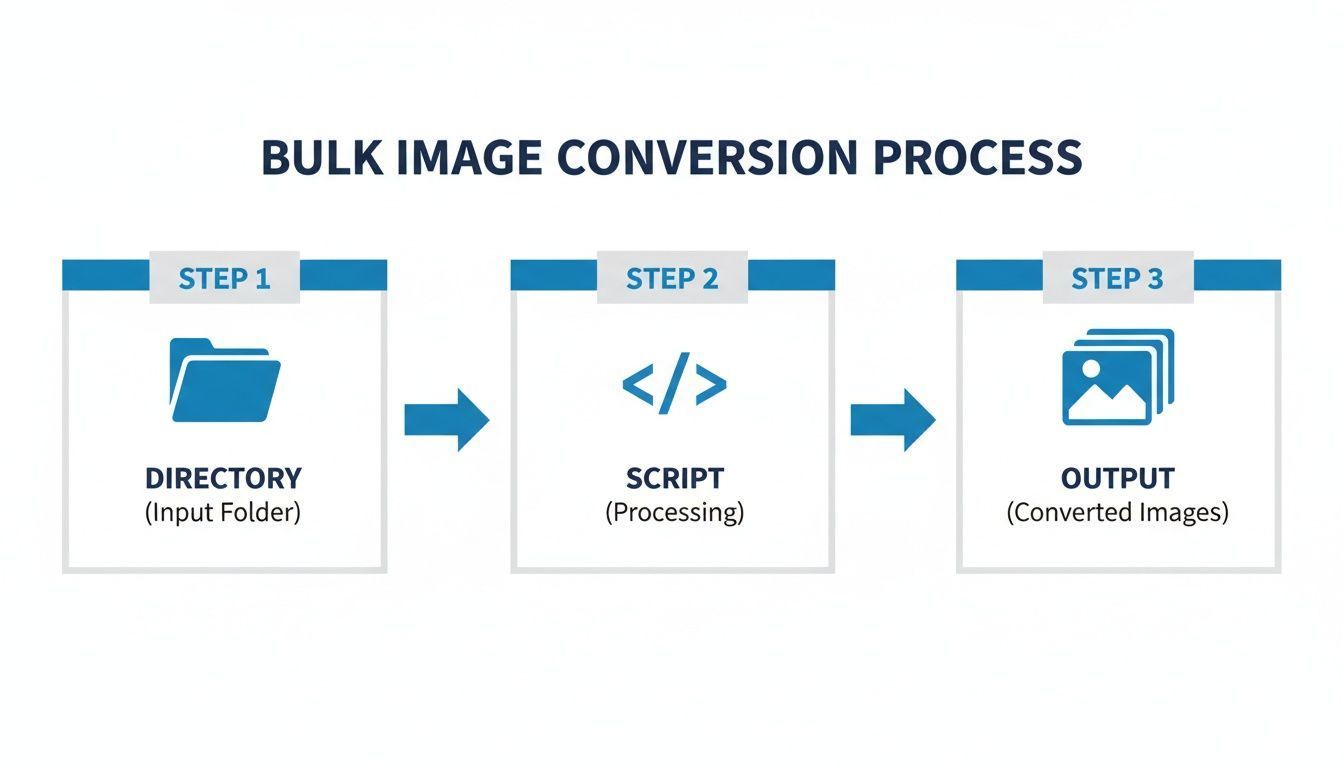
This diagram shows how an automated system can take a whole directory of images and generate the converted outputs you need, completely eliminating the manual grind.
An image API doesn't just serve the right format; it can also serve the right size for the user's screen. Combining dynamic resizing with format conversion is a seriously powerful way to maximise page speed.
This hands-off approach is especially useful in markets with a wide mix of devices. Take Poland's internet scene in 2023, for example. With 28 million people active on social media, the demand for fast, optimised images on platforms like Instagram skyrocketed. In an e-commerce market worth PLN 130 billion, slow-loading images can kill sales. An API that automatically converts AVIF to PNG for older browsers is a huge asset here. For a deeper dive, check out the full report on Poland's digital landscape.
Troubleshooting Common Conversion Problems
Even with the best tools, converting AVIF to PNG doesn't always go off without a hitch. You might run a conversion only to find the output file looks nothing like the original. Don't worry, these issues are more common than you'd think, and thankfully, they're usually straightforward to fix once you know what to look for.
A frequent headache is when the colours just look... off. You convert a vibrant AVIF, and the resulting PNG looks dull, washed-out, or completely different. This is almost always a colour profile problem. AVIF files often use wide colour gamuts, but many converters default to a standard sRGB profile for PNGs. When those profiles don't align, the colours can shift dramatically.
The trick is to make sure the colour profile is handled correctly during the conversion. Most command-line tools and APIs have specific flags or parameters for this. Forcing the output to explicitly use the sRGB colour space is often the simplest fix, ensuring your PNGs look vibrant and accurate everywhere.
Preserving Transparency and Managing File Size
Another classic pitfall is losing transparency. Your original AVIF has a nice, clean transparent background, but the final PNG suddenly appears on a solid white or black one. This happens when the alpha channel—the part of the file that stores transparency information—gets dropped during the avif to png process.
To fix this, you'll need to dig into your tool's documentation and look for flags related to transparency or the alpha channel.
- In a tool like ImageMagick, this is usually handled automatically, but a corrupted AVIF can sometimes trip it up.
- If you're using an API like PixelFiddler, transparency is preserved by default, which takes the guesswork out of the equation.
The whole point is to make the conversion invisible. A correctly managed alpha channel means your logos, icons, and product cut-outs will blend seamlessly into your website's design without those ugly, blocky backgrounds.
Finally, don't be shocked if your new PNG is massive. Since PNG is a lossless format, it can never match AVIF's aggressive compression. Still, if the file size seems way out of line, you can often fine-tune the compression settings. Many tools offer different filtering algorithms or compression levels that can shrink the file size without any loss in visual quality. A little experimentation here can help you strike that perfect balance, delivering crisp images that don't destroy your page load times and hurt your site's Web Core Vitals.
AVIF & PNG: Your Questions Answered
Working with modern image formats can definitely throw a few curveballs. If you're wrestling with the specifics of AVIF and PNG, you're not alone. Here are some straightforward answers to the questions I hear most often from fellow developers.
When Should I Use PNG Instead of AVIF?
The simple answer? Prioritise PNG when you absolutely cannot afford for an image to fail. Think of critical brand assets—your logo, key icons, or any graphic that needs to look perfect for every single visitor, no matter how old their browser is.
AVIF is fantastic for performance, but its support isn't universal yet. PNG is your bulletproof fallback. It guarantees a flawless visual experience everywhere, preventing those dreaded broken image icons and keeping things professional, especially on older systems or in tricky environments like email clients.
Does Converting AVIF to PNG Reduce Image Quality?
Nope, the conversion from AVIF to PNG itself won't degrade your image. PNG is a lossless format, which means it creates a perfect, pixel-for-pixel copy of whatever you feed it.
Now, if your original AVIF file was saved with lossy compression (which is very common), the resulting PNG will perfectly preserve that version, including any compression artefacts it already had. The key thing to remember is that the PNG will be an exact snapshot of the AVIF's quality at that moment—no better, no worse.
How Does This Conversion Impact Core Web Vitals?
A smart, dual-format strategy has a massive, positive impact on your Core Web Vitals. By serving featherlight AVIF files to modern browsers, you dramatically cut down image loading times. This is a direct win for your Largest Contentful Paint (LCP) score, a metric that Google and your users care about deeply.
For browsers that can't handle AVIF, having an automatic PNG fallback is crucial. It stops the layout from collapsing and then jumping around as the image eventually loads, which is exactly what tanks your Cumulative Layout Shift (CLS) score. This approach makes your site faster for everyone.
This isn't just theory; it's a powerful technique for real-world performance gains. For a deeper dive into how this all ties together, the folks at web.dev have a great guide on improving page speed with optimised images.
Can I Batch Convert an Entire Folder of AVIF Files?
Absolutely, and you definitely should. Batch converting is a lifesaver for any project with more than just a few images, and this is where command-line tools and simple scripts really earn their keep.
You’ve got plenty of options for automating this:
- A shell script with ImageMagick's
mogrifycommand can chew through an entire directory with just one line. - A Python script using the excellent Pillow library can loop through a folder, open each AVIF, and save it out as a PNG.
- For raw speed, a Node.js script with a library like Sharp can process images asynchronously and is incredibly fast.
Automating this is standard practice in modern development workflows. It saves a ton of time and ensures all your images are handled consistently.

Ready to stop wrestling with manual conversions and complex scripts? PixelFiddler offers a powerful, API-driven solution for on-the-fly image optimisation and format conversion. Serve the perfect AVIF or PNG to every user automatically, reduce storage costs, and boost your page speed with our global CDN.
Try it for free at https://pixel-fiddler.com.