PNG vs JPG When to Use Each Image Format for Web Performance
The whole PNG vs JPG debate really boils down to a single, fundamental trade-off: do you need perfect image quality or a smaller file size?
The whole PNG vs JPG debate really boils down to a single, fundamental trade-off: do you need perfect image quality or a smaller file size? JPG is your go-to for photographs and other complex images because its compression is fantastic. On the other hand, PNG is the clear winner for graphics that need transparency or have sharp, clean lines, like logos and icons.
It’s less about which one is better and more about picking the right tool for the job.
A Quick Comparison of PNG vs JPG
Every single day, designers and developers have to make this choice. Get it wrong, and you could be saddling your website with huge files that kill your page speed, damaging both the user experience and your Core Web Vitals. But get it right, and your visuals will look crisp while your pages load in a flash.
The performance impact is very real. For instance, in Poland's fast-growing e-commerce market, a recent study showed that 82% of top sites use JPG for their product photos. This simple decision led to an average image file size of just 45KB and resulted in 28% faster page load times on 4G networks than if they had used PNGs. You can dig deeper into Poland's digital trends in the full report on DataReportal.
This choice is all about context. A vibrant, colourful photograph thrives with JPG’s compression, while a logo with a transparent background simply wouldn't work without PNG.
Key Differences Between PNG and JPG at a Glance
To make this even clearer, let's break down the core differences. Understanding these distinctions is the key to mastering your site's visual assets for both quality and speed. This table is a quick reference guide to help you make the right call instantly.
| Feature | PNG (Portable Network Graphics) | JPG (Joint Photographic Experts Group) |
|---|---|---|
| Compression | Lossless (retains every single pixel of the original data) | Lossy (intelligently discards some data to shrink file size) |
| Transparency | Yes (full alpha channel support for perfect transparent backgrounds) | No (doesn't support transparency at all) |
| Best For | Logos, icons, graphics with text, and any image that needs a clear background. | Photographs, complex images with lots of colours and gradients, and e-commerce product shots. |
| File Size | Tends to be larger because it holds on to more image information. | Significantly smaller, making it ideal for fast-loading web pages. |
| Editing | Great for images you need to re-save multiple times without losing quality. | Quality degrades slightly every time you edit and re-save the file. |
This table gives you the technical breakdown, but the practical advice is even simpler.
The core takeaway is this: use JPG when you need photographic realism and PNG when you need graphical precision. Stick to that one principle, and you'll solve the vast majority of your image format headaches and build a solid foundation for a faster website.
Comparing Compression: Lossy vs Lossless
The real heart of the PNG vs JPG debate isn't about transparency or file size on the surface. It's about how each format handles image data through compression. This one core difference—lossy versus lossless—is what determines the right format for the job and has a massive impact on your website's performance.
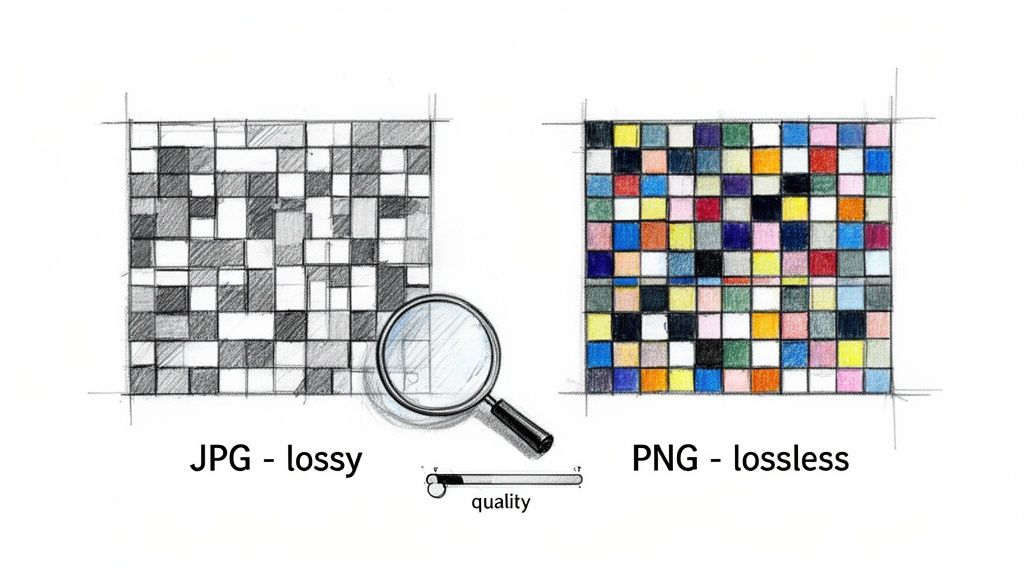
JPGs use lossy compression, a clever method built for efficiency. It looks at an image and strategically throws away data that the human eye isn't likely to pick up on anyway. This is why a JPG can take a photograph full of complex colours and gradients and shrink it down to a surprisingly small file. It's a master of compromise.
PNG, on the other hand, uses lossless compression. It keeps every single pixel from the original image perfectly intact. The algorithm it uses, called DEFLATE, finds smart ways to represent the image data more efficiently without actually deleting a thing. It’s a bit like zipping up a file; when you unzip it, everything is exactly as it was.
The Technical Magic Behind the Formats
Under the hood, the algorithm driving JPG compression is the Discrete Cosine Transform (DCT). It works by grouping pixels into blocks and then converting them into a set of frequencies. The high-frequency data, which usually corresponds to fine details we don't easily notice, gets selectively discarded to make the file smaller.
PNG's DEFLATE algorithm takes a completely different approach. It hunts for repeating patterns in the image data and simply replaces them with shorter references. This technique is incredibly effective for images with big blocks of solid colour—think logos, diagrams, or UI elements—but it's far less efficient when dealing with the noisy, chaotic detail found in a photograph.
The choice between lossy and lossless is a strategic trade-off. JPG sacrifices absolute fidelity for speed and smaller file sizes, which is crucial for web performance. PNG prioritises perfect quality, making it non-negotiable for assets where every detail must be preserved.
Seeing the Difference Compression Makes
You can really see the effects of lossy compression when a JPG is saved at a low-quality setting. You’ll start to notice compression artefacts—those ugly, blocky, or fuzzy patches that often show up around sharp edges or in smooth colour gradients.
- High-Quality JPG (90-100%): Artefacts are practically invisible. This gives you a fantastic balance of quality and size for most photos.
- Medium-Quality JPG (60-80%): You might spot a slight loss of detail if you look closely, but this is often the sweet spot for web images.
- Low-Quality JPG (Below 50%): Artefacts become very obvious, and the image quality takes a serious hit.
Because they are lossless, PNG files never have this problem. A PNG will look identical to the original source, no matter how many times you save or re-compress it. This reliability is exactly why designers insist on using PNGs for final logos, icons, and any graphic with crisp lines or text. The trade-off, of course, is that this pixel-perfect quality results in a larger file, which can bog down your website if you’re not careful.
Getting this right is fundamental to optimising your site's speed. As detailed in this great article on improving Core Web Vitals, image size is a huge factor in your Largest Contentful Paint (LCP) score. Simply choosing a well-compressed JPG over a huge PNG for a hero image can dramatically improve LCP and give your users a much better experience. Fast-loading images are non-negotiable for good page speed, and knowing when to go lossy or lossless is the first step.
Choosing the Right Format for Your Use Case
Knowing the technical theory behind lossy and lossless compression is one thing, but putting that knowledge into practice is where it really counts. The whole PNG vs JPG debate comes down to one simple thing: context. Each format has its own arena where it excels, and making the right call is key to building a website that's both beautiful and fast.
This isn't just an aesthetic choice; it’s a strategic one that directly affects user experience and site speed. The correct format helps your visuals melt seamlessly into your design while keeping load times lightning-fast. The wrong one can introduce ugly visual flaws or, even worse, create a slow, frustrating experience for your visitors
When to Use JPG for Photos and Complex Imagery
For photographs and images with rich colours, subtle gradients, and natural detail, JPG is usually the best choice. Its lossy compression was specifically designed to handle the complexity of real-world images, making it ideal for assets like e-commerce product photos, blog hero images, and photography portfolios.
By selectively discarding visual data that the human eye is unlikely to notice, JPGs achieve a strong balance between image quality and file size. This efficiency is critical for web performance, as large photographic images are often among the heaviest assets on a page and frequently become the Largest Contentful Paint (LCP) element.
Compared to PNG, JPG files are typically much smaller for photographic content, which helps pages load faster, especially on mobile networks. Faster image delivery improves user experience, reduces bounce rates, and supports better Core Web Vitals scores.
Common use cases where JPG excels include:
- E-commerce product photos: Ideal for showcasing clothing, electronics, furniture, and other items with detailed textures and colour variation.
- Blog and article banners: Large, visually rich images that need to load quickly to avoid hurting LCP.
- Photography portfolios: Allows high-resolution images to be displayed without forcing visitors to download unnecessarily large files.
In short: if an image comes from a camera and contains millions of colours, JPG is usually the right default. The goal is to compress the image as much as possible before visible compression artefacts appear.
When to Use PNG for Graphics and Transparency
While JPG is the master of photographic detail, it falls completely flat when you need absolute precision or transparency. This is precisely where PNG comes in and shines. Its lossless compression is a guarantee that every single pixel is preserved, making it the only real choice for graphics that depend on sharp lines, solid blocks of colour, and crisp text.
But the real showstopper for PNG is its support for an alpha channel, which allows for true, flexible transparency. This means you can place a logo or an icon on any background, and it will blend in perfectly without that clunky, amateur-looking white box around it. A JPG simply can't do this; it would trap your graphic in a solid background, completely disrupting your design.
This difference is absolutely critical for maintaining brand consistency and achieving a professional look.
Just picture a company logo in a website header. Save it as a JPG, and it's stuck inside a white or coloured rectangle, clashing horribly with the header's background. Save it as a PNG, and the logo floats elegantly, becoming a natural part of the design. It's no wonder designers exclusively use PNG for these kinds of assets.
PNG is the non-negotiable format for:
- Logos and Icons: They demand razor-sharp edges and have to work on all sorts of backgrounds.
- User Interface (UI) Elements: Think buttons, charts, and diagrams where absolute clarity is essential for usability.
- Screenshots with Text: PNG keeps text perfectly sharp, avoiding the fuzzy artefacts that JPG compression often creates.
- Any Graphic Needing a Transparent Background: This is the format's defining and most powerful feature.
Picking the right format has a direct impact on how people see your site. A well-optimised JPG makes your photos load in a snap, while a sharp PNG makes your branding look polished and professional. By understanding these specific use cases, you can make smarter, asset-by-asset decisions that boost both performance and aesthetics—a crucial step in improving your site's Core Web Vitals and overall page speed.
How Your Image Choice Hits Core Web Vitals and SEO
The whole PNG vs. JPEG debate is about far more than just how an image looks. It's a fundamental business decision that directly impacts your website's performance, user experience, and, ultimately, where you rank in search results. Think about it: every image you upload has to be downloaded by your visitors, and the size of that file dictates how fast your page feels.
Picking the wrong format can be a performance killer. Using a massive, uncompressed PNG for a big hero photograph, for example, is a classic mistake that can wreck your Largest Contentful Paint (LCP) score. LCP is one of Google’s key metrics for measuring user experience, and a slow score sends a clear signal to search engines that your page is frustratingly slow, which can seriously harm your rankings.
The Link Between File Size and Keeping Visitors on Your Site
The real-world consequences of slow load times are stark and well-documented. Study after study shows a direct line between page speed and user behaviour. As the seconds tick by, bounce rates shoot up. In fact, research from Google shows that the chance of a user abandoning your site skyrockets by 32% as the page load time increases from just one to three seconds.
This isn't some abstract theory. Studies from Google and Deloitte show that even small delays in load time can significantly increase bounce rates and reduce conversions.
Every kilobyte you shave off an image is a win for user experience and your business goals. Choosing the right image format isn't just a technical footnote; it's a core part of building a high-performing website that respects your visitor's time.
By prioritising smaller file sizes with smart format choices, you create a faster, smoother experience that encourages people to stick around, explore, and ultimately convert. This is precisely why getting the PNG vs. JPEG decision right is so critical for anyone serious about their online presence.
How Image Optimisation Gives Your SEO a Boost
Search engines like Google have been crystal clear: page speed and user experience are major ranking factors. A faster website doesn't just feel better to a human; it also signals quality and efficiency to search engine crawlers. This is where Core Web Vitals enter the picture.
- Largest Contentful Paint (LCP): This metric tracks how long it takes for the largest visual element on the screen to load. Nine times out of ten, a poor LCP score is caused by a large, unoptimised image. Swapping a bulky PNG for a compressed JPEG in your main banner can be the single most effective fix.
- Cumulative Layout Shift (CLS): While less directly tied to the file format, images that load without proper dimensions can cause the page layout to jump around unexpectedly. This creates a terrible user experience and a poor CLS score. Optimisation is about more than just file size; it's also about good coding practice.
- First Input Delay (FID): When a browser is struggling to download massive image files, it can’t respond quickly to user input like clicks or taps. That lag is frustrating. Smaller images free up the browser to be more responsive, directly improving your FID score.
A fantastic resource for getting to grips with these concepts is the official guide on improving Web Vitals on web.dev, which really drives home the importance of image optimisation. Managing image formats properly is a core skill in technical SEO.
By simply choosing the right tool for the job—JPEG for photos, PNG for graphics needing transparency—you cut down your page's total weight. This act alone improves your Core Web Vitals, which helps strengthen your SEO. A faster-loading site is rewarded with better visibility in search results, bringing in more organic traffic. It’s clear that the strategic choice between PNG and JPEG isn't just about design; it’s a foundational piece of a digital strategy that balances beautiful visuals with rock-solid performance.
Beyond PNG and JPG: The Rise of Modern Image Formats
For years, the choice felt binary: PNG for graphics, JPG for photos. But that whole debate is becoming a relic of the past. The inherent limitations of these older formats—PNG’s often massive file sizes and JPG’s complete lack of transparency—created a need for something better. That's where formats like WebP and AVIF step in, and they've completely changed the conversation around web performance.
These modern formats were engineered from the ground up to offer far more efficient compression, leading to files that are dramatically smaller than their predecessors. It doesn't matter if you need the crisp, perfect detail of lossless compression or the file-size savings of a lossy approach; WebP and AVIF handle both. Most importantly, they both support transparency, finally closing the gap that forced us to choose between PNG and JPG for so long.
The Power of WebP and AVIF
WebP, developed by Google, has quickly become a cornerstone of modern web development. It consistently shrinks image files compared to both PNG and JPG, often without any perceptible loss in quality. According to Google's own case studies, a lossless WebP file can be 26% smaller than the same image saved as a PNG. For photos, a lossy WebP can be anywhere from 25-34% smaller than a comparable JPG. Those are serious gains for page speed.
But AVIF pushes the envelope even further. It delivers some of the most impressive compression ratios we've ever seen. It’s quite common for an AVIF file to be 50% smaller than a JPG of similar visual quality. For any site, but especially for e‑commerce stores and media-heavy platforms, these savings translate directly into quicker load times and better Core Web Vitals. You can dive deeper into how these next-gen formats work in this in-depth guide to image optimisation from web.dev.
The real game-changer with modern formats is their flexibility. You're no longer stuck choosing between a format for transparency (PNG) and another for photo compression (JPG). WebP and AVIF masterfully handle both, and with incredible efficiency.
How Modern Formats Are Delivered
If these new formats are so much better, why hasn't everyone ditched the old ones entirely? The short answer is browser compatibility. While support for WebP and AVIF is now excellent across the board, some older browser versions can't render them. This is where a smart delivery technique called content negotiation comes into play.
Instead of serving the same image format to everyone, a properly configured server can figure out what a user's browser supports and automatically send the most efficient file. The process is pretty straightforward:
- A browser requests an image and tells the server what formats it can handle (like AVIF, WebP, and JPG) in the request headers.
- The server looks at that list and sends back the best available option. If the browser supports AVIF, it gets the tiny AVIF file.
- If not, the server checks for WebP support and delivers that instead.
- As a last resort, if neither modern format is supported, the server provides a universal fallback—usually the original JPG or PNG.
This approach ensures every visitor gets the fastest-loading image their browser can handle, and no one ever sees a broken image icon.
Now, managing all this manually—creating multiple versions of every single image and writing the server logic to handle the negotiation—would be an absolute nightmare. That’s precisely why automated tools like PixelFiddler were created. They take care of the entire process behind the scenes, so your images are always delivered in the optimal format without you having to lift a finger.
To help you see how these formats stack up, let's look at a direct comparison of their key features.
Modern Image Format Feature Comparison
This table breaks down the core capabilities of legacy and modern formats, highlighting why WebP and AVIF are such a significant step forward for advanced optimisation.
| Feature | JPG | PNG | WebP | AVIF |
|---|---|---|---|---|
| Compression Type | Lossy | Lossless | Lossy & Lossless | Lossy & Lossless |
| Transparency | No | Yes (8-bit) | Yes (8-bit) | Yes (8-bit) |
| Animation | No | Yes (APNG) | Yes | Yes |
| Colour Depth | 8-bit | Up to 24-bit | 8-bit | Up to 12-bit |
| File Size | Good | Poor (Very Large) | Excellent | Superior |
| Browser Support | Universal | Universal | ~97% | ~94% |
As you can see, WebP and AVIF aren't just incremental improvements. They represent a fundamental shift, offering the versatility needed for today's web without the performance penalties of older formats.
Taking the Guesswork Out of Image Optimisation
Let's be honest: manually picking between PNG and JPEG for every single image is a soul-crushing task. It's not just tedious; it's easy to get wrong. As we've covered, making the right choice involves considering the image content, applying the best compression, and then serving up modern formats like WebP or AVIF. That’s a lot to juggle.
This is where automation comes in, transforming image management from a chore into a seamless background process. An automated image API can handle all this complexity for you. Think of it as a smart middleman that sits between your stored images and your website visitors, optimising every asset on the fly. All the magic happens through a simple URL, taking the burden completely off your developers.
Free Up Your Developers to Do What They Do Best
An automated workflow means your team can stop fiddling with image formats and get back to building your actual product. The payoffs are both immediate and significant.
- Automatic Format Selection: The API intelligently detects which formats a visitor's browser can handle. It'll serve a super-light AVIF or WebP file to someone on the latest version of Chrome, while ensuring a reliable JPEG or PNG fallback is sent to someone on an older browser.
- Intelligent Compression: Smart algorithms analyse the content of each image to apply the perfect amount of compression. This slashes file sizes without you ever noticing a drop in quality.
- Effortless Transformations: Need to resize, crop, or add a filter? Just add a few parameters to the image URL. There’s no more need to pre-generate and store dozens of different versions of the same asset.
When you hand off image management to a specialised service, you get a massive performance boost without cluttering your own codebase. It’s simply the most effective way to guarantee every user gets the quickest, most visually rich experience possible.
The Real-World Impact on Performance and Core Web Vitals
Bringing in an automated image solution has a direct, positive effect on your site’s speed and its Core Web Vitals scores. Images are usually the heaviest things on a webpage, so getting them right delivers the biggest bang for your buck when it comes to performance.
An image API like PixelFiddler can reduce image file sizes by up to 50–90%. This has a direct and measurable impact on your Largest Contentful Paint (LCP) score—a key metric for user experience.
Faster images mean faster pages, which keeps your visitors happy and sends great signals to search engines. If you want to dive deeper into how this all works, this guide on improving Web Vitals from Google is a fantastic resource. Ultimately, automation turns a recurring technical headache into a solved problem, letting you deliver a consistently fast and reliable experience every time.
Your Image Format Questions, Answered
Choosing between PNG and JPG often brings up a few common questions. Let's clear up some of the most frequent points of confusion so you can put these ideas into practice.
Can I Convert a JPG to a PNG?
Absolutely. Any image editor will let you save a JPG as a PNG. But it’s crucial to understand what this does and doesn’t do. The conversion won't magically bring back the detail lost when the image was first saved as a JPG.
The real reason to convert a JPG to a PNG is to add a transparent background, which the JPG format simply doesn't support. You're trading file size for functionality, not restoring lost quality.
Which Format is Better for My Website?
This is the million-dollar question, and the answer is always: "it depends." There's no single "best" format. Think of them as different tools for different jobs.
For rich, detailed photographs, a well-optimised JPG is almost always the winner because it keeps file sizes down, helping your pages load faster. For logos, icons, user interface elements, or any graphic that needs crisp lines and a transparent background, PNG is the non-negotiable choice.
A fast, beautiful website doesn’t stick to one format; it uses a smart mix of both. The goal is to evaluate every single image and pick the format that offers the best quality at the lowest possible file size.
Why Do My PNG Files Take So Long to Load?
Slow-loading PNGs are usually a file size issue. Because PNGs use lossless compression, they don't discard any image data. This is fantastic for preserving quality but can lead to much larger files compared to JPGs, especially for complex images like photos.
A bigger file means a longer download time, which can directly impact your site's Core Web Vitals and page speed.
If a PNG is slowing down your site, first ask if it's the right format for that specific image. If it's a logo or icon and needs to be a PNG, make sure it has been properly compressed. Even better, modern image delivery tools can automatically serve it as a much smaller WebP or AVIF file to browsers that support them, giving you the best of both worlds.

Tired of manually juggling image formats? With PixelFiddler, you can automate the entire process. It handles format selection, compression, and delivery of next-gen formats like AVIF and WebP, cutting your bandwidth costs and dramatically improving your Core Web Vitals.