
Serve your first image
This guide walks you through serving your first image with PixelFiddler — from connecting a media source to delivering a transformed image via URL.
Prerequisites
Section titled “Prerequisites”Before you begin, make sure you have:
- A PixelFiddler account — sign up here if you don’t have one
- At least one image ready to upload or an existing storage provider (S3, Azure, GCP, etc.)
Step 1: Connect a media source
Section titled “Step 1: Connect a media source”A media source tells PixelFiddler where your images are stored. The quickest way to get started is with a Hosted source — no external accounts needed.
Using Hosted storage (recommended)
Section titled “Using Hosted storage (recommended)”- Navigate to Sources in your space
- Click “Create new source”
- Select Hosted as the source type
- Give it a name and alias (e.g.,
my-images) - Click Create
Upload your first image
Section titled “Upload your first image”- Open your newly created hosted source
- Click Upload or drag and drop an image into the file browser
- Wait for the upload to complete
If you already have images stored in AWS S3, Azure Blob Storage, or Google Cloud Storage, you can connect those instead.
Step 2: Serve your image
Section titled “Step 2: Serve your image”Once your image is uploaded, you can access it via a URL. The base URL format is:
https://media.pixel-fiddler.com/{sourceAlias}/media/{imagePath}For example, if your source alias is my-images and you uploaded a file called photo.jpg, the URL would be:
https://media.pixel-fiddler.com/my-images/media/photo.jpgOpen this URL in your browser — you should see your image served through PixelFiddler.
Step 3: Apply your first transformation
Section titled “Step 3: Apply your first transformation”The real power of PixelFiddler is transforming images on the fly using URL parameters. Try adding some parameters to your image URL:
Resize the image
Section titled “Resize the image”https://media.pixel-fiddler.com/my-images/media/photo.jpg?width=400&height=300Or using short aliases:
https://media.pixel-fiddler.com/my-images/media/photo.jpg?w=400&h=300Change the format
Section titled “Change the format”Convert your image to WebP for smaller file sizes:
https://media.pixel-fiddler.com/my-images/media/photo.jpg?format=webp&quality=80Combine multiple transformations
Section titled “Combine multiple transformations”You can chain as many transformations as you need:
https://media.pixel-fiddler.com/my-images/media/photo.jpg?w=400&h=300&f=webp&q=80Here is an interactive preview of how transformations work:
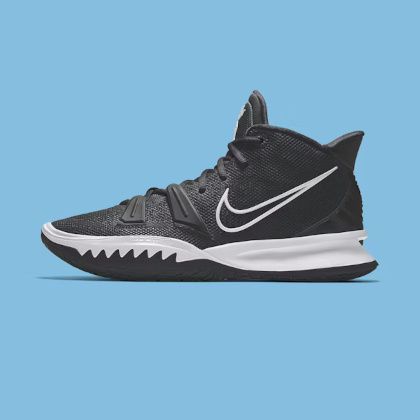
<img src="https://media.pixel-fiddler.com/{sourceAlias}/media/{imagePath}?bl=0&q=80"/>Step 4: Use the image in your application
Section titled “Step 4: Use the image in your application”Now that you have a working image URL, you can use it anywhere — in your website, app, or API.
<img src="https://media.pixel-fiddler.com/my-images/media/photo.jpg?w=400&h=300&f=webp&q=80" alt="My first PixelFiddler image"/>.hero { background-image: url('https://media.pixel-fiddler.com/my-images/media/photo.jpg?w=1200&h=600&f=webp');}Common parameter reference
Section titled “Common parameter reference”Here are the most commonly used parameters to get you started:
| Parameter | Alias | Description | Example |
|---|---|---|---|
width | w | Target width in pixels | w=400 |
height | h | Target height in pixels | h=300 |
format | f | Output format | f=webp |
quality | q | Quality level (1-100) | q=80 |
mode | rm | Resize strategy | rm=fit |
blur | bl | Gaussian blur (0-100) | bl=5 |
Next steps
Section titled “Next steps”Now that you’ve served your first image, explore more of what PixelFiddler offers:
- Resize and format — Control dimensions, resize modes, and output formats
- Apply effects — Add blur, contrast, borders, and more
- Add watermarks — Protect your images with overlay watermarks
- Create aliases — Save reusable transformation presets
- Secure your images — Set up tokens and signatures