
Test your first image
This guide shows you how to test image transformations in PixelFiddler before using them in your application. You’ll learn how to experiment with parameters, preview results, and validate your transformations work as expected.
Prerequisites
Section titled “Prerequisites”Before you begin, make sure you have:
- A PixelFiddler account with at least one media source configured
- An image uploaded to your source — see Serve your first image if you haven’t done this yet
Disable transformation security for testing
Section titled “Disable transformation security for testing”By default, all transformations are protected by a token. To test transformations directly in your browser, you need to temporarily disable this protection:
- Go to Sources and select your source
- Navigate to Security settings
- Set Transformations security to None
Test in your browser
Section titled “Test in your browser”The quickest way to test transformations is directly in your browser’s address bar.
Step 1: Get your base image URL
Section titled “Step 1: Get your base image URL”Start with your image’s base URL:
https://media.pixel-fiddler.com/{sourceAlias}/media/{imagePath}For example:
https://media.pixel-fiddler.com/my-images/media/photo.jpgStep 2: Add transformation parameters
Section titled “Step 2: Add transformation parameters”Append a ? followed by your transformation parameters:
https://media.pixel-fiddler.com/my-images/media/photo.jpg?w=300&h=200Press Enter and see the transformed image instantly.
Step 3: Experiment with different values
Section titled “Step 3: Experiment with different values”Modify the URL parameters and refresh to see changes:
https://media.pixel-fiddler.com/my-images/media/photo.jpg?w=300&h=200&bl=5&q=80Interactive preview
Section titled “Interactive preview”Try adjusting these parameters to see how transformations affect an image:
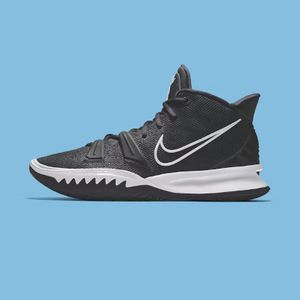
<img src="https://media.pixel-fiddler.com/{sourceAlias}/media/{imagePath}?w=300&q=80&bl=0"/>Common test scenarios
Section titled “Common test scenarios”Here are some typical transformations to test:
Thumbnail generation
Section titled “Thumbnail generation”?w=150&h=150&rm=fill&q=80Creates a 150x150 square thumbnail with the image filling the frame.
Responsive images
Section titled “Responsive images”Test different sizes for responsive breakpoints:
?w=400 // Mobile?w=800 // Tablet?w=1200 // DesktopEffect combinations
Section titled “Effect combinations”?w=600&bl=3&ct=60&sa=80Combines resize with blur, contrast, and saturation adjustments.
Troubleshooting
Section titled “Troubleshooting”Image not loading
Section titled “Image not loading”- Verify your source alias is correct
- Check that the image path matches exactly (case-sensitive)
- Ensure your source is properly configured and accessible
Transformation not applied
Section titled “Transformation not applied”- Check for typos in parameter names
- Verify parameter values are within valid ranges
- Some parameters require specific formats (e.g., colors as hex values)
Unexpected results
Section titled “Unexpected results”- The
modeparameter affects how resizing behaves — tryrm=fit,rm=fill, orrm=pad - Some effects are subtle at low values — increase the value to confirm it’s working
Next steps
Section titled “Next steps”Now that you know how to test transformations:
- Explore all transformations — See the complete list of available parameters
- Create aliases — Save commonly used transformation combinations
- Add watermarks — Protect your images with overlays
- Secure your images — Prevent unauthorized transformations