A Developer's Guide to Download Image From URL
Right-clicking to save a picture is simple enough, but learning to download an image from a URL programmatically is a core skill for any web developer today. This is the engine that powers everything from content management systems and social med
Right-clicking to save a picture is simple enough, but learning to download an image from a URL programmatically is a core skill for any web developer today. This is the engine that powers everything from content management systems and social media link previews to massive data processing jobs. It’s all about automating how your applications grab and manage visual content without missing a beat.
Why Downloading Images From URLs Still Matters
While manually saving an image works fine for one person, web applications need something far more reliable. When you're dealing with dynamic or user-generated content at any kind of scale, automated, server-side image downloading becomes absolutely essential.
This isn’t just a convenience for developers either; it has a direct, measurable impact on the end-user experience. Slow image delivery makes a terrible first impression and can seriously hurt your website’s performance metrics—the very same ones that are crucial for search engine rankings.
The Impact on Web Performance
On the modern web, every millisecond counts. One of the biggest culprits behind poor page load times is sluggish image handling, which can tank your site's Core Web Vitals. These metrics are Google's way of measuring user experience, and slow-loading visuals are a primary cause of a low Largest Contentful Paint (LCP) score. A bad LCP score sends a clear signal to search engines that your page offers a frustrating experience. For a deeper dive into improving these metrics, check out our guide on improving web core vitals and boosting page speed.
The real challenge isn't just fetching an image; it's fetching it in a way that preserves performance. This means thinking about optimisation before the image even touches your server.
A Smarter Approach to Image Handling
The key is to shift your mindset from just downloading an image to optimising it first. Why would you pull a huge, uncompressed file onto your server, chewing up resources and bandwidth, only to process it afterwards? This is where a more advanced strategy pays off.
Instead of a basic download, you can use a URL-based image transformation tool like PixelFiddler. This approach turns a simple fetch request into a powerful performance-tuning exercise.
By manipulating the image through its URL, you can unlock some serious benefits:
- Reduced Server Load: Offload all the heavy lifting—resizing, cropping, and compression—to a service built for the job.
- Lower Bandwidth Costs: You only download the exact version of the image you need, not the oversized original.
- Faster Applications: Deliver perfectly optimised images directly to your users, improving page speed and keeping them engaged.
This guide will walk you through the practical methods for fetching images programmatically. More importantly, we'll explore the techniques for optimising them before they even arrive, making your applications faster and more scalable from the ground up.
Grabbing Images Programmatically From a URL
When "right-click, save as" just won't cut it, you need to automate the process of downloading images. This is where we step away from the browser and into the world of scripting and server-side code. Whether you're a sysadmin wrangling digital assets or a developer building an app that needs to fetch remote images, these methods are essential tools of the trade.
Let's start with the most direct route: the command line.
Command-Line Powerhouses: cURL and wget
For quick, no-fuss downloads, nothing beats the command-line interface (CLI). If you're on a Unix-like system like macOS or Linux, you've got two brilliant tools at your fingertips: cURL and wget. I use them constantly for simple scripting tasks.
With cURL, the -o flag is your best friend. It lets you tell it exactly what to name the file once it's downloaded.
Here’s how you’d grab an image and name it yourself:
curl -o my-new-image.jpg "https://media.pixel-fiddler.com/my-source/media/my-image.jpg"
Then there's wget, which works in a slightly different way. By default, it cleverly uses the original filename from the URL, which can be a real time-saver if you don't need to rename everything.
A simple wget command looks like this:
wget "https://media.pixel-fiddler.com/my-source/media/my-image.jpg"
These CLI tools are perfect for one-off downloads or embedding into simple shell scripts. But when you need to bake this functionality into a more complex application, it's time to bring in the server-side big guns.
Server-Side Downloads with Node.js and Python
When your application needs to fetch an image from a URL as part of a larger workflow, you'll want the control that a proper programming language offers. For this, Node.js and Python are fantastic choices, but they share a common best practice: handle the image data as a stream.
Why stream? Think about it: loading a massive, high-resolution image entirely into your application's memory is a recipe for disaster. By streaming the data in small chunks directly to a file, you keep memory usage low and prevent your app from crashing. It's a non-negotiable for robust applications.
In a Node.js project, a library like Axios makes this incredibly straightforward. You can request the image as a stream and then "pipe" it directly into a file on your server.
Here's a quick look at a Node.js function to do just that:
import axios from 'axios';
import fs from 'fs';

async function downloadImage(url, filepath) {
  const response = await axios({
    url,
    method: 'GET',
    responseType: 'stream'
  });
  return new Promise((resolve, reject) => {
    response.data.pipe(fs.createWriteStream(filepath))
      .on('finish', () => resolve())
      .on('error', e => reject(e));
  });
}

const imageUrl = 'https://media.pixel-fiddler.com/my-source/media/my-image.jpg';
const localPath = 'downloaded-image.jpg';
downloadImage(imageUrl, localPath);
Python developers have an equally powerful tool in the ever-popular Requests library. The magic here is the stream=True parameter in your GET request. This tells requests not to download the whole file at once, allowing you to iterate over the data in manageable chunks.
And here’s the Python equivalent:
import requests

def download_image(url, filepath):
    response = requests.get(url, stream=True)
    if response.status_code == 200:
        with open(filepath, 'wb') as f:
            for chunk in response.iter_content(1024):
                f.write(chunk)

image_url = "https://media.pixel-fiddler.com/my-source/media/my-image.jpg"
local_path = "downloaded_image.jpg"
download_image(image_url, local_path)
Sometimes you'll also need to manage different image formats on the fly. If you're dealing with modern formats and need wider compatibility, check out our guide on converting AVIF to PNG.
Comparison of Common Image Download Methods
To help you decide which tool is right for the job, here's a quick breakdown of the methods we've just covered.
| Method | Environment | Primary Use Case | Complexity |
|---|---|---|---|
cURL | Command-Line (CLI) | Quick, scripted downloads with custom filenames. | Low |
wget | Command-Line (CLI) | Simple, scripted downloads preserving original names. | Low |
| Node.js | Server-Side | Integrating downloads into a JavaScript application. | Medium |
| Python | Server-Side | Integrating downloads into a Python application. | Medium |
Ultimately, the best approach depends entirely on where you're working and what you're trying to build. Each of these methods provides a solid foundation for pulling images from anywhere on the web into your project.
Getting Past Common Image Download Roadblocks
Trying to grab an image from a URL with a script often seems simple at first, but it doesn't take long to hit a snag. These issues are incredibly common out in the wild, where URLs aren't always neat and tidy. The key to building solid download logic is learning to expect these problems and handle them smoothly.
One of the most frequent hurdles you'll encounter is an HTTP redirect. The URL you have might point to an image that's been permanently moved (a 301 redirect) or just temporarily shifted (a 302). A basic script that can't follow these redirects will just error out, thinking the link is dead. Thankfully, most modern HTTP libraries for languages like Node.js or Python have options to automatically follow redirects, letting your script find the image's new home without you lifting a finger.
Handling Protected Images and Large Files
Another classic challenge is dealing with images that aren't open to the public. Plenty of APIs and content systems lock down their assets, demanding you prove who you are before you can download anything. The fix usually involves passing an API key or an authorisation token in the request headers.
For instance, your request might need an Authorization: Bearer <your-api-token> header. If you forget that little piece, you'll be met with a 401 Unauthorized or 403 Forbidden error, and your script will grind to a halt. Always double-check the API documentation for the service you’re working with to see what it requires.
Beyond access controls, the sheer size of an image can bring your application to its knees. If you try to download a massive, high-resolution file by loading it all into memory at once, you're just asking for a crash. The smart way to handle this is by streaming the download. This technique means you read the file in small, manageable chunks and write them straight to disk. It keeps your memory usage low and your app running reliably.
The moment you try to download an image that’s larger than your available server memory, your application will crash. Streaming isn't just a 'nice-to-have'—it is an essential practice for building robust, production-ready applications that can handle any file size thrown at them.
Overcoming Browser-Based Hurdles
If you're trying to download an image using JavaScript running in a user's browser, you'll almost certainly bump into Cross-Origin Resource Sharing (CORS) errors. It's a security feature baked into browsers that stops a webpage from grabbing resources from a different domain.
When the server hosting the image doesn't send back the right CORS headers (like Access-Control-Allow-Origin: *), the browser will flat-out block the request. You've got a couple of ways around this:
- The ideal solution is to configure the remote server to allow requests from your domain.
- If you can't do that, you can proxy the request. Your own server fetches the image and then passes it along to the client, neatly sidestepping the browser's cross-origin rules.
Getting a handle on these common roadblocks is the first step toward writing scripts that don't just work on clean examples but thrive in the messy reality of the web. By preparing for redirects, authentication, and memory limits, you can build a truly dependable process to download an image from a URL.
How to Optimise Images on the Fly Before Downloading
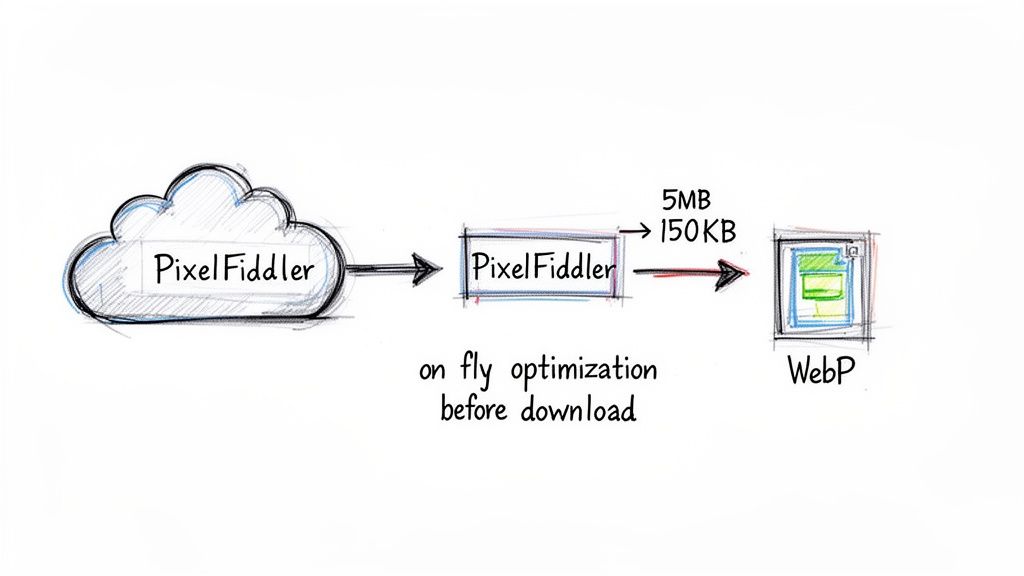
The standard way to grab an image from a URL works, but it’s often a clunky, inefficient process. You download the massive, original source file, then burn up your own server’s resources resizing, cropping, and compressing it. This eats up bandwidth and processing power, a problem that really adds up when you're doing it thousands of times a day.
There's a much smarter way to handle this.
Instead of downloading first and processing later, you can transform the image before it ever lands on your server. This is exactly what a URL-based image transformation API is for.
Transforming Images With a Simple URL
The idea is brilliantly simple. By just adding a few parameters to an image URL, you can tell a service like PixelFiddler to do all the heavy lifting in real-time. This simple trick turns a basic download into a powerful optimisation pipeline.
Let's say you have a big source image sitting in a public bucket on Amazon S3 or Google Cloud Storage. The original URL is straightforward:
https://media.pixel-fiddler.com/my-source/media/my-image.jpg
Now, you need a version for your website that's 800 pixels wide and in the modern WebP format. Instead of downloading that original file and running a conversion script, you just tweak the URL:
https://media.pixel-fiddler.com/my-source/media/my-image.jpg?w=800&format=webp
When your code hits that new URL, the service grabs the original, applies your transformations instantly, and sends back the perfectly optimised result. Your original file is left untouched, and your server never had to do a thing. If you want to dive deeper into format conversions, we have a guide on transforming PNGs into WebP that breaks it all down.
The Immediate Performance Benefits
This URL-based approach is more than just a neat trick; it's a genuine performance win. The positive impact on your application and infrastructure is immediate and substantial.
Here’s what you stand to gain:
- Massive Bandwidth Savings: Large JPEGs can often be reduced by 60–90% when converted to modern formats like WebP, depending on content and quality settings..
- Reduced Server Load: All the demanding image processing is offloaded to a specialised service designed for that exact task. This frees up your server's CPU and memory to focus on what it does best.
- Accelerated Workflows: Your developers can stop worrying about building and maintaining complicated image processing libraries. The whole thing is handled with a single dynamic URL.
Teams often report substantial bandwidth savings after switching to modern image formats and automated delivery.
This is a game-changer for improving your website's Core Web Vitals. Serving smaller, correctly-sized images is fundamental to a good Largest Contentful Paint (LCP) score. According to research from Google, pages meeting the LCP threshold enjoy a significant reduction in bounce rates.
Faster images mean a better user experience and happier visitors. By optimising images before they're even downloaded, you're building performance into the very foundation of your content delivery.
Better Core Web Vitals Through Smarter Image Delivery
The way you handle images has a direct, massive impact on the user experience metrics that Google really cares about. Chasing better Core Web Vitals isn't just about appeasing an algorithm; it's about building a faster, more stable website that people actually enjoy using. And honestly, smart image delivery is one of the quickest wins you can get.
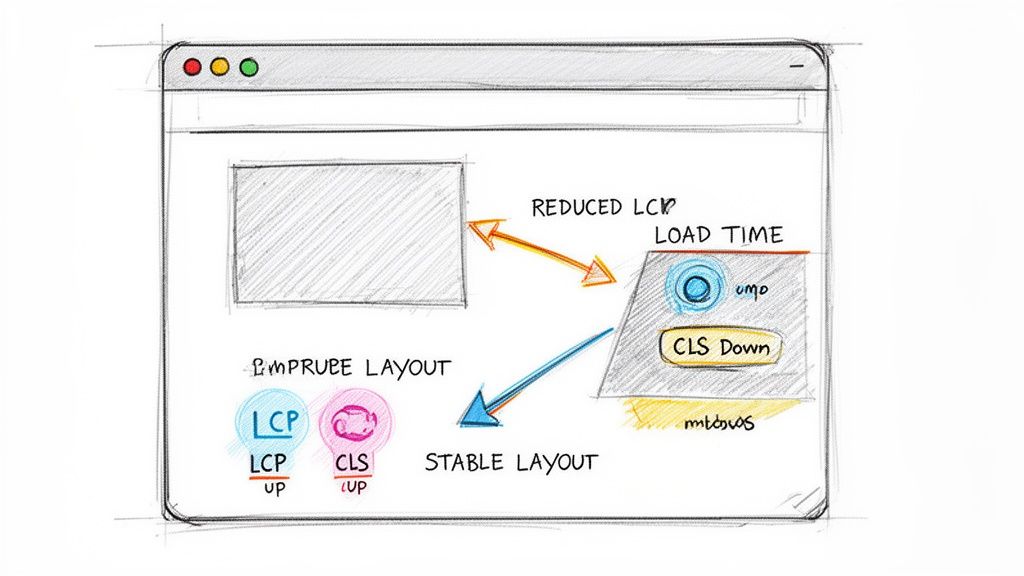
When you use an on-the-fly optimisation service, you're directly improving two of the three main Core Vitals: Largest Contentful Paint (LCP) and Cumulative Layout Shift (CLS). This isn't just theory—it’s a real strategic advantage that leads to better SEO rankings and, for e-commerce sites, more sales. The link is undeniable: faster pages make for happier users.
Drastically Improving Largest Contentful Paint
Your LCP score boils down to how fast the biggest thing on the screen—usually a hero image—loads. A slow LCP makes your site feel clunky and broken. In my experience, the culprit behind a poor LCP score is almost always a huge, unoptimised image file.
By transforming an image before it's downloaded, you can serve up a much smaller file. Think about it: converting a bulky JPEG to a modern format like WebP or AVIF can easily slash its size by 30-50%, sometimes even more, without any visible drop in quality. A smaller file means a faster download, so your LCP element appears almost instantly.
Google’s research shows a strong correlation between faster Largest Contentful Paint (LCP) times and improved user engagement. Pages that meet the recommended 2.5-second LCP threshold consistently see lower bounce rates compared to slower pages, according to findings published on Web.dev. While LCP alone isn’t the only factor, faster-loading images play a major role in keeping users engaged and reducing early exits from a page.
This is dead simple with a URL-based API. Just by adding a parameter like ?format=webp to the URL, you're telling the server to send a lightweight, modern image to the browser. It's a simple change that gives your LCP a huge boost. For a deeper look at this, our guide on Next.js image optimisation has some great real-world examples.
Preventing Layout Shifts for a Better CLS Score
Cumulative Layout Shift (CLS) is all about visual stability. Nothing frustrates a user more than trying to click a button, only to have it jump down the page because a big image finally loaded and shoved all the content out of the way. It’s a terrible experience.
The key to fixing this is specifying the image dimensions upfront. When you use an image API, you can set the exact width and height right in the URL itself:
https://media.pixel-fiddler.com/my-source/media/my-image.jpg?w=800&h=600
Doing this lets the browser reserve the perfect amount of space for the image before it even finishes downloading. The layout stays locked in place, content doesn't jump, and your CLS score stays nice and low. For media-heavy sites or online shops, this kind of stability is non-negotiable for building trust and looking professional.
Common Questions About Downloading Images
We've walked through the nuts and bolts of downloading images, but a few questions always seem to pop up in practice. Let's dig into some of the most frequent sticking points to help you write code that's ready for the real world.
How Do I Keep the Original Filename?
Getting the actual filename can be a bit of a treasure hunt. The gold standard is to inspect the Content-Disposition HTTP response header. If you find a filename="..." directive in there, that's your definitive source. It's the server telling you exactly what the file should be called.
Of course, that header isn't always available. When it's missing, the next best thing is to grab the filename from the end of the URL path itself. It's a solid fallback, but always trust the header first if it exists. Tools like cURL are smart enough to do this for you automatically when you use the -O flag.
What's the Best Way to Deal With Rate Limiting?
Pounding a server with rapid-fire requests is a quick way to get your access cut off. Before you even start coding, check the API documentation for any official rate limits—it's just good etiquette.
The best approach is to build a polite pause into your download loop, maybe just a second or two between requests. If you do get slapped with a 429 Too Many Requests error, your script should know how to handle it gracefully. The classic strategy here is exponential backoff: you wait a moment, try again, and if it fails, you double the waiting time before the next attempt. This makes your script much more robust.
Ignoring rate limits isn't just rude; it can get your IP blacklisted. A simple delay and a retry mechanism shows respect for the server and keeps your script from falling over.
Can I Download an Image From a Base64 String?
Absolutely, though it’s a different beast entirely. When you see a Base64 string in an <img> tag's src, you're not looking at a link to a file—you're looking at the image data itself, just encoded as text.
Here's how you turn it back into a file:
- Isolate the data: First, you need to grab everything that comes after the comma in the
data:image/jpeg;base64,part. - Decode the string: Next, use a built-in library to decode that string back into binary data. Node.js has its
Buffermodule for this, and Python has thebase64library. - Save it: Finally, just write that binary data to a new file, giving it the right extension (like
.jpgor.png) based on the original data type.
Getting a handle on these common scenarios will prepare you for the weird and wonderful situations you'll face when you need to download an image from a URL for your projects.

Ready to stop downloading oversized images and start transforming them on the fly? With PixelFiddler, you can resize, crop, and convert images using a simple URL, dramatically improving your site's performance and Core Web Vitals. Get started for free and see how easy it is.