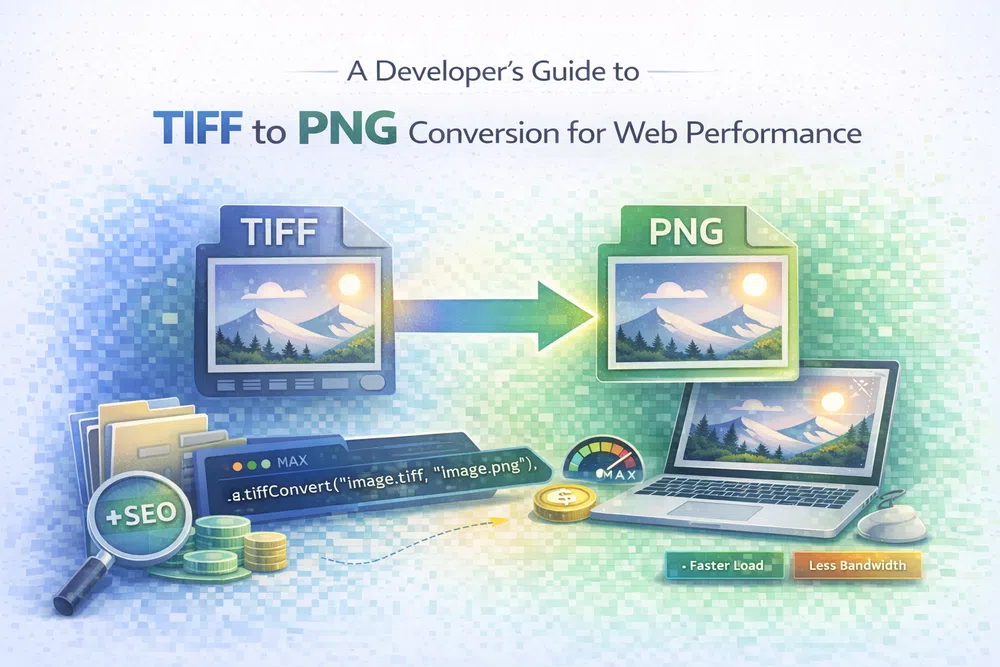
A Developer's Guide to TIFF to PNG Conversion for Web Performance
If you’re still using TIFF files on your website, you’re unintentionally slowing it down. Converting them to PNG is a simple yet powerful optimisation that swaps a bulky, print-first format for one that’s built for the web. The whole process is about re-encoding the image data into the PNG format, which excels at lossless compression and has built-in transparency support. It’s a small change that makes a huge difference in page load speed.
If you’re still using TIFF files on your website, you’re unintentionally slowing it down. Converting them to PNG is a simple yet powerful optimisation that swaps a bulky, print-first format for one that’s built for the web. The whole process is about re-encoding the image data into the PNG format, which excels at lossless compression and has built-in transparency support.
It’s a small change that makes a huge difference in page load speed.
Why TIFF Is Holding Your Website Back
In the world of professional photography and high-end printing, TIFF files are king, and for good reason. They are designed to preserve every last bit of image data, support multiple layers, and offer a range of compression options. But those very features are what make them a massive liability online.
Simply put, their file sizes are enormous. We're talking multiple megabytes for a single image, which is a primary cause of slow-loading pages that hurt both user experience and your search engine rankings.

When someone lands on your site, their browser has to download every single asset. A hefty TIFF can bring that process to a grinding halt. By converting from TIFF to PNG, you can drastically shrink that file size—often by more than 90%—without losing any noticeable visual quality, all thanks to PNG’s clever compression algorithm.
To put it into perspective, here's a direct comparison of why PNG is the clear winner for any web application.
TIFF vs PNG A Head-To-Head Comparison for Web Use
| Feature | TIFF (Tagged Image File Format) | PNG (Portable Network Graphics) |
|---|---|---|
| Primary Use Case | High-quality print, archiving, professional photography. | Web graphics, logos, icons, images requiring transparency. |
| File Size | Very large, often multiple MBs. A major performance bottleneck. | Significantly smaller due to efficient lossless compression. |
| Browser Support | Not universally supported. Requires plugins or is not rendered. | Native support in all modern web browsers. No issues. |
| Transparency | Can support transparency, but it's not web-standard. | Excellent support for full alpha channel transparency. |
| Performance Impact | Severely slows down page load times, harming SEO and UX. | Lightweight and fast, leading to better performance scores. |
The table makes it obvious: for web use, PNG is not just a better choice, it's the only practical one.
The Impact on Core Web Vitals
Slow-loading images are a direct hit to your website's health, particularly your Largest Contentful Paint (LCP) score. LCP is a critical part of Google's Core Web Vitals, measuring how quickly the largest piece of content on your page becomes visible to the user. You can read more in our guide to improving web core vitals and page speed.
A poor LCP score means a frustrating wait for your visitors and can lead to lower SEO rankings. The data doesn't lie: according to research from Portent in 2022, a site that loads in 1 second has a conversion rate 3x higher than a site that loads in 5 seconds. Switching to optimised PNGs is a direct and effective way to tackle this problem head-on.
Think of it this way: converting your images from TIFF to PNG isn't just a file format change. It's a strategic performance upgrade that results in faster load times, better SEO, and happier users.
Ultimately, choosing PNG over TIFF for the web is non-negotiable if you're serious about performance. You’re trading a format built for the printing press for one designed for the speed and flexibility the modern web demands. If you want to see the difference for yourself, you can easily convert any image to PNG with our free tool.
Mastering Conversions with Command-Line Tools
For developers and system administrators who live in the terminal, command-line tools are hands-down the fastest way to convert images. Powerhouses like ImageMagick and its leaner cousin, GraphicsMagick, give you direct, scriptable control over any tiff to png task, whether you're dealing with one file or thousands.

Getting started is refreshingly simple. Once you've got ImageMagick installed, a single line in your terminal is all it takes to get the job done.
convert input.tiff output.png
That's it. This command reads your source TIFF and writes a new PNG, figuring out the format change on its own. The real magic, though, happens when you start using flags to fine-tune the output.
Optimising Your PNG Output
Just changing the format is only the first step. True performance gains come from optimisation. By stripping out unnecessary data and applying smart compression, you can slash file sizes without sacrificing visual quality.
Here's a more production-ready command I often use:
convert input.tiff -strip -quality 85 output.png
Let's break down what's happening here:
-strip: This is a crucial flag. It removes all embedded profiles and comments, like EXIF data, which can bloat your file size. For web use, you almost never need this metadata.-quality 85: This adjusts the compression level. For PNGs, this influences the filtering algorithms, and a value around 80-90 usually hits the sweet spot between file size and image fidelity.
In my experience, combining these flags can easily shrink a PNG's file size by an extra 20-40% over a default conversion. That's a massive win for page load times and your Core Web Vitals score.
Handling Multi-Page TIFFs
A common headache with TIFFs is their ability to store multiple pages in a single file—think scanned documents or faxes. Since PNG only supports a single image per file, you need a way to unpack them.
Fortunately, ImageMagick handles this scenario brilliantly.
If you run the standard convert command on a multi-page TIFF, it automatically splits each page into a separate, numbered PNG file.
convert document.tiff page.png
The result will be a series of files: page-0.png, page-1.png, page-2.png, and so on, one for each page in the original document. Need to grab just one specific page? You can target it directly by its index (which starts at 0).
convert 'document.tiff[0]' first-page.png
This command pulls only the very first page from document.tiff and saves it as a new PNG. This kind of granular control is a lifesaver for processing archives or layered artwork. The principles here are similar to other format conversions, and if you're interested, you can see how they apply in our guide to converting from AVIF to PNG.
Automating with Batch Scripts
This is where command-line tools truly shine. Converting hundreds of images one by one is a recipe for boredom and error. A simple Bash script can automate the entire workflow.
#!/bin/bash
# A simple script to convert all TIFFs in a folder to PNGs

mkdir -p png_output

for file in *.tiff; do
  convert "$file" -strip "png_output/${file%.*}.png"
done

echo "Batch conversion complete!"
This script creates a new directory called png_output, finds every .tiff file in the current folder, strips its metadata, converts it to PNG, and saves the result in the new directory. A small script like this can save you hours of tedious work and ensures every single image is processed with the exact same settings. It’s an indispensable part of any developer’s local toolkit.
Building Automated Workflows in Python and Node.js
When you're past converting single files and need to bake image processing right into an application, scripting is your best friend. Automating the TIFF to PNG workflow keeps things consistent, saves a ton of manual effort, and lets your solution scale, whether it's for a content pipeline or a dynamic web service. For this kind of work, Python and Node.js are the two heavyweights, each offering fantastic libraries for high-performance image manipulation.

If you're in the Python camp, the library you'll want is Pillow, the modern and actively maintained fork of the classic Python Imaging Library (PIL). It’s incredibly robust, straightforward to work with, and gracefully handles just about any image format you can throw at it.
For Node.js developers, the clear winner is sharp. It’s ridiculously fast because it’s built on the high-performance libvips library, making it perfect for chewing through large images without breaking a sweat.
Converting TIFF to PNG with Python and Pillow
Let's jump into a practical Python script designed to convert an entire directory of TIFF files. This isn't just a simple loop; it’s a production-ready example with error handling baked in, so one bad file won't bring the whole operation to a halt.
First things first, make sure you have Pillow installed. A quick pip command will do the trick:
pip install Pillow
With that installed, you can use the following script to get the job done.
from PIL import Image
import os

def convert_tiff_to_png_in_directory(source_dir, output_dir):
    """
    Finds all .tiff files in a source directory, converts them to .png,
    and saves them in a specified output directory.
    """
    # Create the output directory if it doesn't already exist
    if not os.path.exists(output_dir):
        os.makedirs(output_dir)

    for filename in os.listdir(source_dir):
        # Check for both .tiff and .tif extensions, case-insensitively
        if filename.lower().endswith(('.tiff', '.tif')):
            try:
                img_path = os.path.join(source_dir, filename)
                with Image.open(img_path) as img:
                    # Construct the new filename
                    base_name = os.path.splitext(filename)[0]
                    output_path = os.path.join(output_dir, f"{base_name}.png")

                    # Saving as 'PNG' automatically handles transparency
                    img.save(output_path, 'PNG')
                    print(f"Successfully converted {filename} to PNG.")
            except Exception as e:
                # Catch and report errors without stopping the script
                print(f"Could not convert {filename}. Error: {e}")

# How to run it:
# Just replace the paths with your actual source and destination folders.
convert_tiff_to_png_in_directory('path/to/your/tiffs', 'path/to/your/pngs')
This script works by methodically scanning your source folder, opening each TIFF it finds, and re-saving it as a PNG in the destination. The try-except block is a must-have in the real world—it ensures the script stays resilient and doesn't crash on the first problematic file it encounters.
Powering Conversions with Node.js and Sharp
On the server-side, especially where speed is everything, Node.js paired with sharp is a phenomenal choice. Thanks to its asynchronous design, your application stays snappy and responsive even when it's processing a huge batch of images in the background.
To get started, you'll need to initialise a new Node.js project and install sharp.
npm init -y
npm install sharp
Here’s a clean function that can take a single TIFF file and convert it into a highly optimised PNG.
const sharp = require('sharp');
const path = require('path');

async function convertTiffToPng(inputPath, outputPath) {
  try {
    await sharp(inputPath)
      .png({ quality: 85, compressionLevel: 9 }) // Fine-tune the PNG output
      .toFile(outputPath);
    console.log(`Successfully converted ${path.basename(inputPath)}`);
  } catch (error) {
    console.error(`Error converting ${path.basename(inputPath)}:`, error);
  }
}

// Example of how to use the function
const inputFile = 'images/source.tiff';
const outputFile = 'images/output.png';
convertTiffToPng(inputFile, outputFile);
Pro Tip: The
.png()method insharpgives you some serious control. SettingcompressionLevel: 9gets you the best possible compression (at the cost of speed), whilequality: 85strikes a great balance between file size and visual fidelity. Don't be afraid to tweak these values to find the sweet spot for your project.
This kind of function is perfect for building out backend services, like an API endpoint that accepts a TIFF upload and returns a ready-to-use PNG. If you're working with remote files, you can find more on this topic in our guide on how to download an image from a URL. By integrating these types of scripts, you can build a truly reliable and automated image processing pipeline.
Delivering Images with a Real-Time Conversion API
Manually running scripts or command-line tools to convert tiff to png is fine for local development or a one-off batch job. But let's be realistic—it doesn't scale for modern, dynamic applications. When your images live in cloud storage and need to be served to thousands of users, a real-time image processing API changes everything.
This approach means you can stop writing complex backend scripts and, more importantly, stop storing multiple versions of the same image. Picture this: your original, high-quality TIFFs are sitting in an S3 bucket or Google Cloud Storage. Instead of pre-converting them all, you can serve perfectly optimised PNGs on the fly, just by tweaking a URL.
How On-the-Fly Conversion Works
A service like PixelFiddler acts as a smart proxy between your storage and your users. You hook up your image source, and from then on, you can request any transformation by adding simple parameters to the image URL. It creates a much more flexible and powerful media workflow.
Let's look at a typical URL structure to see what's happening.
https://media.pixel-fiddler.com/my-source/media/my-image.jpg?format=png&quality=85
This URL tells the API to do a few things, instantly:
- Fetch the original
my-image.jpgfrom your connected storage source (my-source). - Convert it to PNG on the spot (
format=png). - Apply a quality optimisation of 85 (
quality=85). - Deliver the resulting PNG to the user’s browser, usually through a global CDN for a serious speed boost.
This entire process happens in milliseconds. You only ever store the original file, but you can serve it as a PNG, WebP, or even AVIF, resized, cropped, or with filters applied, just by changing a few query parameters.
The Strategic Advantage for Web Performance
For developers and e-commerce teams obsessed with performance, this dynamic conversion is a huge win. Switching from bulky TIFFs to optimised PNGs with a URL-based API lets you slash load times. We all know users expect instant image loads, especially on mobile, and these optimisations are key to getting sub-second rendering that directly boosts engagement and sales. You can see how these transformations work in our interactive demo.
E-commerce marketplaces and media platforms use URL-based APIs to alias
tiff to pngtransforms, which means they avoid constant re-uploads and code changes. It’s why on-the-fly conversion has become the go-to strategy for scalable, edge-delivered perfection.
This isn't just about convenience; it’s a strategic move to nail your core web vitals. Being able to deliver the right format for every context without any manual work is a massive part of building a fast, modern website.
Ensuring Perfect Quality in Your Conversions
A successful tiff to png conversion is about more than just swapping the file extension. The real goal is to create a PNG that’s a pixel-perfect replica of the original TIFF. Getting this right means sweating the details—things like colour profiles, transparency, and metadata, which are often the difference between a professional result and a sloppy one.

One of the most common pitfalls I see is colour shifting. This happens when a conversion tool simply ignores the ICC (International Colour Consortium) profile embedded in the TIFF. That profile is crucial; it’s the instruction manual that tells devices how to interpret the image's colours correctly. Without it, your vibrant reds might look dull and muted on one screen but oversaturated on another. It's a recipe for inconsistency.
Managing Colour Profiles and Transparency
To stop colours from going rogue, you have to make sure your conversion process respects and correctly applies the source ICC profile. Many of the more advanced tools and APIs, including PixelFiddler, handle this automatically. They read the profile from the TIFF and embed the right colour information into the final PNG, guaranteeing your images look consistent across different browsers and devices.
Transparency is another detail you can’t afford to get wrong. TIFF files often include an alpha channel, which defines areas of full or partial transparency. The good news is that PNG has excellent, native support for alpha channels. The bad news? A lazy conversion might just discard this data, slapping an unwanted solid background onto your image. A quality tool will preserve that alpha channel flawlessly, which is absolutely essential for things like logos, icons, and product shots that need to sit cleanly on varied backgrounds.
Handling Metadata The Smart Way
Finally, let's talk about metadata. TIFF files can be packed with extensive EXIF (Exchangeable Image File Format) data—all sorts of information like camera settings, location, and copyright notices. While this is great for archiving, it’s just dead weight for web images.
For maximum performance, stripping this metadata during conversion is a best practice. A few kilobytes saved on every image adds up quickly, improving your site’s page speed and Core Web Vitals. You can learn more about how image optimisation impacts page speed in our guide to improving First Contentful Paint.
Of course, there are times when you might need to keep specific metadata, like copyright information. For that, you’ll need a tool that gives you granular control over what gets stripped and what stays.
Ultimately, mastering these three areas—colour, transparency, and metadata—is the secret to achieving truly high-fidelity conversions. It ensures your images not only load fast but also look exactly as you intended, no matter where they're displayed. This attention to detail protects your brand's visual integrity and just delivers a much better user experience.
Clearing Up Common TIFF to PNG Questions
Switching from TIFF to PNG can feel like a minefield if you're worried about quality, performance, or tricky edge cases. Let's tackle some of the most frequent questions developers run into, so you can make the move with confidence.
Will I Lose Image Quality When Converting from TIFF to PNG?
Straight answer: no. You shouldn't lose any quality at all. Both TIFF and PNG are lossless formats, which means you're essentially just repackaging the pixel data, not compressing it in a way that throws information away.
The real gotcha isn't the format itself, but the tool doing the conversion. A good tool will correctly interpret things like embedded colour profiles and transparency, making sure the final PNG looks identical to the original TIFF. As long as your process is solid, the image integrity stays perfectly intact.
How Should I Handle Multi-Page TIFF Files?
This is a classic problem. TIFFs can be like a multi-page PDF, but PNGs are strictly one image per file. The solution is to split the TIFF and save each page as its own PNG.
Luckily, many tools are built for this. If you're using a command-line utility like ImageMagick, it often handles this automatically. Run a standard conversion, and you'll typically get a series of numbered files like output-0.png, output-1.png, and so on.
When scripting it yourself in Python with Pillow or in Node.js, you'll need to write a loop. The logic is simple: iterate through each page in the TIFF by its index and save it out as a separate PNG file.
Is PNG Always the Best Replacement for TIFF on the Web?
For anything on the web, yes, absolutely. PNG gives you the same lossless fidelity as TIFF but in a much lighter, browser-friendly format. Its support for alpha channel transparency is also far more reliable and widely supported online.
TIFF still reigns supreme in the world of professional print and archiving, mainly because it can handle CMYK colour spaces, layers, and other complex data that web browsers just don't care about. But for getting crisp, high-quality images to your users online, PNG is the way to go.
What Is the Most Efficient Way to Batch Convert TIFF Files?
"Efficient" really depends on your specific needs. If you have a huge folder of TIFFs on your server that you need to convert just once, a command-line script using ImageMagick or GraphicsMagick is going to be your fastest bet. It's built for raw processing power.
But if conversions are a regular part of your application—say, users upload TIFFs that your backend needs to process—then integrating a library directly into your code is better. For Node.js, sharp is incredibly fast. For Python, Pillow is the standard, reliable choice.
For pure, hands-off scalability, nothing beats a real-time image API. It processes images as they're requested, serves them from a global CDN, and means you never have to pre-convert or store multiple versions of the same file. It completely removes the infrastructure headache.
Ready to stop wrestling with slow TIFFs and start delivering perfectly optimised images? With PixelFiddler, you can convert, optimise, and serve images on the fly with a simple URL API. Get started for free and see how our real-time image transformations can boost your website’s performance.